How to Use Trust Wallet for the First Time: Complete Walkthrough
A practical walkthrough to help new crypto users start using Trust Wallet safely
1. Downloading & Installing Trust Wallet Securely
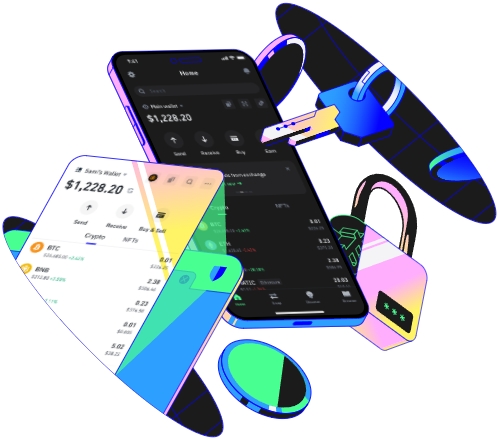
When you’re ready to use Trust Wallet for the first time, the first step is to install the app correctly—this is non-negotiable for avoiding scams. I once had a friend who downloaded a fake Trust Wallet from a third-party website that promised “extra features”, but within hours, his seed phrase was stolen, and he lost all his small crypto holdings of Bitcoin and Ethereum. So always stick to official app stores: Apple App Store for iOS, Google Play Store for Android. On both platforms, search for “Trust Wallet” and check that the developer is listed as “Trust Wallet Inc.”—ignore any apps with similar names like “Trust Wallet Pro” or “Crypto Wallet” that aren’t from the official team, as these are designed to trick new users. Once you find the right app, tap install and wait a minute or two for it to download. When you open it for the first time, you’ll see two clear options: “Create New Wallet” and “I Already Have a Wallet”. Since this is your first time, select “Create New Wallet” to start building your secure, personal crypto account.
2. Initial Wallet Setup: Protecting Your Seed Phrase
This part is the most critical step of your first setup—don’t skip it or rush through it. After clicking “Create New Wallet”, Trust Wallet will display your 12-word recovery seed phrase. This is not just a random list of words; it’s the only key to accessing your funds if your phone breaks, is lost, or you forget your password. Write every single word down exactly in the order the app shows them—don’t copy them into a notes app on your phone, don’t take a screenshot, don’t store them in the cloud. A cousin of mine made the mistake of taking a photo of his seed phrase to save space in his notebook, and when his phone was hacked a few weeks later, the hackers accessed his wallet instantly because the photo was stored in his iCloud backup. Instead, use a physical notebook, maybe even write it on two separate pieces of paper and hide them in different secure places, like a home safe and a family member’s locked jewelry box—this way, if one is lost or damaged, you still have the other. Next, the app will ask you to confirm your seed phrase by tapping on each word in the correct sequence. This ensures you actually wrote it down right—if you get even one word wrong, you won’t be able to recover your wallet later. After confirming the seed phrase, create a password for your wallet: it should be at least 6 characters long, use a mix of letters and numbers, and never reuse a password you’ve used for other accounts. You can also enable biometric login (fingerprint or face ID) here if your phone supports it, which makes opening the app faster without extra typing.
3. First Use: Managing Assets & Making Your First Transaction
Once your wallet is set up, it’s time to add tokens or make your first move. Let’s start with receiving crypto: say you want to get Ethereum from an exchange like Binance. Open Trust Wallet, tap on the “Assets” tab at the bottom, find “Ethereum” in the list. If you don’t see it, tap the “+ Add Token” button at the top right, search for Ethereum (using its contract address if you need to, but Trust Wallet usually auto-populates it for popular tokens), and toggle it on to add it to your assets list. Tap Ethereum, then select “Receive”. The app will show you a long string of characters—this is your unique Ethereum address, no two people have the same one. Copy it, go to your Binance account, navigate to the “Withdraw” section for Ethereum, paste the address, enter the amount you want to send, and confirm. I did this last month when I sold an NFT I created on OpenSea; it took about 10 minutes for the Ethereum to show up in my Trust Wallet, which was way simpler than the process I thought it would be, with no complicated steps to follow. Next, sending crypto works almost the same way: tap the asset you want to send, select “Send”, enter the recipient’s address (double-check every character here—crypto transactions are irreversible, so one wrong letter means your funds are gone forever), type in the amount, and choose a gas fee. Gas fees are the small amounts you pay to the network to process the transaction; for Ethereum, you can pick “Slow” (lower fee, takes 5-10 minutes), “Standard” (average fee, 2-5 minutes), or “Fast” (higher fee, under a minute). For BNB transactions, gas fees are almost negligible, so you don’t have to worry much about overpaying. Before hitting “Confirm”, double-check all details: recipient address, amount, gas fee. Once you’re sure, tap “Send” and wait for the transaction to process—you can track its status in the “Activity” tab of Trust Wallet. You can also connect your Trust Wallet to decentralized apps (dApps) like Uniswap for swapping tokens or PancakeSwap for trading on BNB Chain—just tap the “Browser” tab, go to the dApp site, and select “Connect Wallet” then “Trust Wallet”. Never connect to dApps that look sketchy, and never share your seed phrase when connecting to any service, as this will give others full access to your funds.
TAG:
