How to Transfer TRX From Trust Wallet to Binance
A Guide on Transferring TRX to Binance
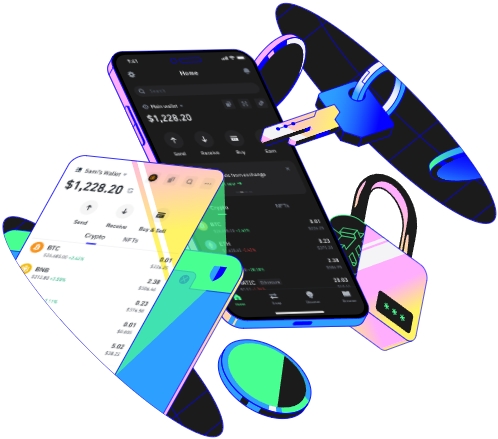
Transferring TRX (Tron) from a Trust Wallet to Binance is a fairly straightforward process that involves a few steps to ensure a seamless and secure transaction. In this guide, we will walk you through the entire procedure, from setting up to the final transfer.
Prerequisites and Setup
Before you start transferring TRX, there are a few prerequisites you need to take care of. First, make sure you have both a Trust Wallet and a Binance account. If you don't have a Trust Wallet, you can easily download it from the official app store on your mobile device, whether it's an iOS or Android. After installation, set up your wallet by following the on - screen instructions, which usually involve creating a strong password and backing up your seed phrase.
For your Binance account, if you haven't registered yet, visit the Binance official website and sign up. Complete the necessary identity verification process as required by Binance to ensure the security of your account. Once both accounts are set up, log in to your Binance account and navigate to the "Wallet" section. Click on "Deposit" and search for "TRX" in the search bar. Binance will provide you with a TRX deposit address. Copy this address carefully as it will be used to receive your TRX from the Trust Wallet.
Preparing the Transfer in Trust Wallet
Open your Trust Wallet on your mobile device. After logging in, locate the TRX token in your wallet. If you have multiple tokens, you may need to scroll down or use the search function. Once you find the TRX token, tap on it. A page will appear showing your TRX balance and other details.
On this page, look for the "Send" button and tap it. You will then be prompted to enter the recipient's address. Paste the TRX deposit address you copied from Binance into this field. Double - and triple - check the address to make sure there are no typos, as sending TRX to the wrong address can result in the permanent loss of your funds.
Next, enter the amount of TRX you want to transfer. You can either type in the exact amount or use the "Max" button if you want to transfer your entire TRX balance. After entering the amount, you'll see an estimated network fee. Network fees can vary depending on the blockchain's congestion at that time. Review all the details carefully, including the recipient address, the amount, and the network fee, before proceeding.
Finalizing the Transfer
Once you're satisfied with all the information, tap the "Confirm" button in the Trust Wallet. You will likely be asked to enter your wallet password or use biometric authentication (such as fingerprint or face ID) to authorize the transaction. After authorization, the transfer will be initiated on the Tron blockchain.
The transfer may take some time to complete, usually a few minutes to an hour, depending on the blockchain's network congestion. You can track the progress of the transfer on the Tron blockchain explorer using the transaction ID provided by the Trust Wallet. Once the transfer is confirmed on the blockchain, you can log in to your Binance account. Go to the "Wallet" and then "Deposit History" to check if the TRX has been successfully deposited into your Binance account. For example, John, a cryptocurrency enthusiast, followed these steps to transfer his TRX from Trust Wallet to Binance. He double - checked all the details and patiently waited for the confirmation. In less than an hour, his TRX was safely in his Binance account, ready for trading or other purposes.
TAG:
