How to Send BSC Tokens Using Trust Wallet Extension
Step-by-Step Process for Seamless Transfers
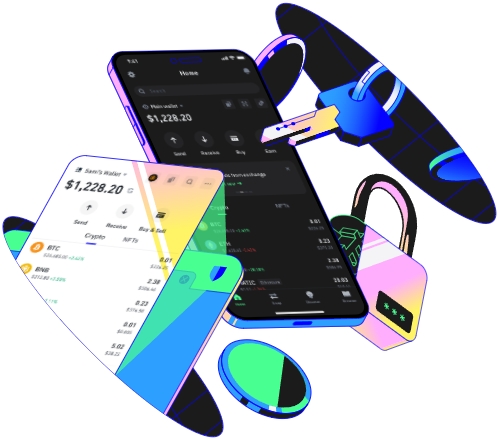
Trust Wallet Extension offers a convenient way to interact with the Binance Smart Chain (BSC) ecosystem and manage your BSC tokens. Sending BSC tokens using this extension is a straightforward process, but it's essential to understand each step to ensure a smooth and secure transaction. In this guide, we'll walk you through how to send BSC tokens using the Trust Wallet Extension.
Prerequisites
Before you can send BSC tokens, you need to have a few things in place. First, you must have the Trust Wallet Extension installed in your browser. You can download it from the official Trust Wallet website or the browser's extension store. Once installed, set up your wallet by following the on - screen instructions. This usually involves creating a new wallet or importing an existing one using your seed phrase.
Secondly, you need to have BSC tokens in your wallet. You can acquire BSC tokens by purchasing them on a cryptocurrency exchange that supports BSC and transferring them to your Trust Wallet Extension address. For example, if you're interested in a popular BSC token like PancakeSwap (CAKE), you can buy it on a centralized exchange like Binance and then transfer it to your Trust Wallet.
Also, make sure your wallet is connected to the Binance Smart Chain network. You can check and change the network in the Trust Wallet Extension by clicking on the network icon at the top - right corner of the extension window. Select the Binance Smart Chain from the list of available networks.
The Sending Process
Once you've met the prerequisites, it's time to send your BSC tokens. Open the Trust Wallet Extension in your browser. You'll see a list of tokens in your wallet. Locate the BSC token you want to send. For instance, if you want to send BNB (the native token of the Binance Smart Chain), click on the BNB token in the wallet interface.
After selecting the token, click on the “Send” button. A new window will appear, prompting you to enter the recipient's wallet address. This address is a long string of alphanumeric characters that uniquely identifies the recipient's wallet. You can either manually type in the address or use the QR code scanner if the recipient provides a QR code of their wallet address. Double - check the address to ensure it's correct, as sending tokens to the wrong address is irreversible.
Next, you need to specify the amount of tokens you want to send. You can either enter the exact number of tokens or use the percentage buttons to send a portion of your total token balance. For example, if you want to send half of your BNB balance, you can click the 50% button.
Once you've entered the recipient's address and the token amount, you'll see an estimated transaction fee. The transaction fee is paid in BNB and is required to process your transaction on the Binance Smart Chain. You can adjust the transaction speed by choosing a different fee level. A higher fee will usually result in a faster transaction, while a lower fee may take longer to be confirmed.
After reviewing all the details, click the “Confirm” button. A confirmation window will appear, asking you to confirm the transaction one last time. Once you click “Send” in this window, the transaction will be broadcast to the Binance Smart Chain network. You can track the status of your transaction on a blockchain explorer like BscScan by entering your transaction hash, which is provided in the Trust Wallet Extension after the transaction is sent.
By following these steps, you can easily send BSC tokens using the Trust Wallet Extension. Remember to always be cautious when dealing with cryptocurrency transactions and double - check all the information before confirming a transfer.
TAG:
